Home
Description#
Remote - a method of integration with the Cloud EDS service through the use of the Biometric frontend client.
This method involves creating a session and then redirecting the end user to the client to finalizing the document signing process.
Stages:#
1. Getting API KEY#
To start working with the service it is necessary to get API KEY, which is issued by the manager of the company.
2. Creating a Session#
To interact with the service, you need to create a session.
This is done by executing a POST request, passing in the API KEY header, as well as the customer's IIN and phone number
in the body of the request.
Note: The session lifetime is 30 minutes. The session cannot be repeated. If necessary, a new session must be created, and the document signing process must be completed again.
URL to request:
-
Dev:
https://dev.b-key.kz/api/v1/session/create/ -
Prod:
https://api.b-key.kz/api/v1/session/create/
| Query format | Query method |
|---|---|
| JSON | POST |
API KEY is passed in the request header:
The .xml and .pdf file formats are supported for signing. The file type is specified when creating a session.
Request body parameters:
| Field Name | Type | Mandatory | Description |
|---|---|---|---|
| iin | String | Yes | Customer ID |
| phone | String | Yes | Company customer phone number, format 77********* |
| document_type | String | No | Type of document to be signed: .pdf or .xml. The default is .pdf |
The following examples contain test data. In real queries, the field values will correspond to the information of a specific subject. If you are using a production environment, you should use the api.b-key.kz subdomain.
Examples of request:
import requests
import json

url = "https://dev.b-key.kz/api/v1/session/create/"
headers = {
    "Content-Type": "application/json",
    "x-api-key": "API_KEY"
}
data = {
    "iin": "<subjects_iin>",
    "phone": "7*********",
    "document_type": "pdf"
}

response = requests.post(url, json=data, headers=headers)

print(response.json())
const url = "https://dev.b-key.kz/api/v1/session/create/";
const headers = {
    "Content-Type": "application/json",
    "x-api-key": "API_KEY"
};
const data = {
    iin: "<subjects_iin>",
    phone: "7*********",
    document_type: "pdf"
};

fetch(url, {
    method: "POST",
    headers: headers,
    body: JSON.stringify(data)
})
    .then(response => response.json())
    .then(result => console.log("Session created:", result))
    .catch(error => console.error("Error:", error));
const url: string = "https://dev.b-key.kz/api/v1/session/create/";
const headers: Record<string, string> = {
    "Content-Type": "application/json",
    "x-api-key": "API_KEY"
};
const data: Record<string, string> = {
    iin: "<subjects_iin>",
    phone: "7*********",
    document_type: "pdf"
};

fetch(url, {
    method: "POST",
    headers: headers,
    body: JSON.stringify(data)
})
    .then(response => {
        if (!response.ok) {
            throw new Error(`HTTP error! status: ${response.status}`);
        }
        return response.json();
    })
    .then(result => console.log("Session created:", result))
    .catch(error => console.error("Error:", error));
The response will come in JSON with the following fields:
- session_id - one-time session identifier for passing flow.
- created_at - session creation time.
- check_id - identifier for further document authentication.
Example response:
{
  "session_id": "3fa85f64-5717-4562-b3fc-2c963f66afa6",
  "created_at": "2024-01-01T00:00",
  "check_id": "43f384e2-770f-4b6c-99c0-7f280befaf01"
}
3. Uploading files for signing#
URL to request:
-
Dev:
https://dev.b-key.kz/api/v1/session/documents/upload/ -
Prod:
https://api.b-key.kz/api/v1/session/documents/upload/
| Query format | Query method |
|---|---|
| form-data | POST |
API KEY is passed in the request header.
Files in .xml or .pdf formats can be uploaded, depending on the type selected when creating the session.
Request body parameters:
| Field Name | Type | Mandatory | Description |
|---|---|---|---|
| session_id | String | Yes | Session ID |
| name | String | Yes | Displayed file name |
| file | file | Yes | File in `.pdf' format (max. size for dev is 30KB) |
The following examples contain test data. In real queries, the field values will correspond to the information of a specific subject. If you are using a production environment, you should use the api.b-key.kz subdomain.
Examples of request:
import requests
import json

url = "https://dev.b-key.kz/api/v1/session/documents/upload/"
headers = {
    "x-api-key": "API_KEY"
}
files = {
    "session_id": ("<session_id>"),
    "name": ("example_file.pdf"),
    "file": open("path/to/example_file.pdf", "rb")
}

response = requests.post(url, headers=headers, files=files)

if response.status_code == 200:
    print("File uploaded successfully:", response.json())
else:
    print("Error:", response.status_code, response.text)
const url = "https://dev.b-key.kz/api/v1/session/documents/upload/";
const headers = {
    "x-api-key": "API_KEY"
};

const formData = new FormData();
formData.append("session_id", "<session_id>");
formData.append("name", "example_file.pdf");
formData.append("file", document.querySelector('input[type="file"]').files[0]);

fetch(url, {
    method: "POST",
    headers: headers,
    body: formData
})
    .then(response => response.json())
    .then(result => console.log("File uploaded successfully:", result))
    .catch(error => console.error("Error:", error));
const url: string = "https://dev.b-key.kz/api/v1/session/documents/upload/";
const headers: Record<string, string> = {
    "x-api-key": "API_KEY"
};

const formData: FormData = new FormData();
formData.append("session_id", "<session_id>");
formData.append("name", "example_file.pdf");

// Assume a file input in the DOM or file blob
const fileInput = document.querySelector('input[type="file"]') as HTMLInputElement;
if (fileInput.files && fileInput.files[0]) {
    formData.append("file", fileInput.files[0]);
}

fetch(url, {
    method: "POST",
    headers: headers,
    body: formData
})
    .then(response => {
        if (!response.ok) {
            throw new Error(`HTTP error! status: ${response.status}`);
        }
        return response.json();
    })
    .then(result => console.log("File uploaded successfully:", result))
    .catch(error => console.error("Error:", error));
The response will come in JSON with the following fields:
- id - one-time session identifier for passing flow.
- name - the name of the file you specified when creating the session.
- sign - signature in CMS format, you can learn more in FAQ, at this stage, the field will be empty.
- created_at - session creation time.
- updated_at - time of the last update of session data.
Example response:
{
  "id": "3fa85f64-5717-4562-b3fc-2c963f66afa6",
  "name": "string",
  "sign": null,
  "created_at": "2024-01-01T00:00:00.000Z",
  "updated_at": "2024-01-01T00:00:00.000Z"
}
Uploading Files for Signature in Base64 Format#
Request URL:
-
Dev:
https://dev.b-key.kz/api/v1/session/documents/upload/base64/ -
Prod:
https://api.b-key.kz/api/v1/session/documents/upload/base64/
| Request Format | HTTP Method |
|---|---|
| JSON | POST |
The API KEY is passed in the request header.
Files in .xml or .pdf formats can be uploaded, depending on the type selected when creating the session.
Request Body Parameters:
| Parameter Name | Type | Required | Description |
|---|---|---|---|
| session_id | String | Yes | Session ID |
| name | String | Yes | Display name of the file |
| base64_file | String | Yes | File in base64 format |
The examples below contain test data. In real requests, the field values will correspond to the information of the specific subject.
When using the production environment, use the subdomain api.b-key.kz
Request Examples:
curl --request POST \
--url https://dev.b-key.kz/api/v1/session/documents/upload/base64/ \
--header 'x-api-key: API_KEY' \
--header 'accept: application/json' \
--header 'Content-Type: application/json' \
-d '{
    "session_id": "<session_id>",
    "name": "example_file.pdf",
    "base64_file": "<base64_string>"
}'
import requests

headers = {
    'x-api-key': 'API_KEY',
    'accept': 'application/json',
    'Content-Type': 'application/json',
}

json_data = {
    'session_id': '<session_id>',
    'name': 'example_file.pdf',
    'base64_file': '<base64_string>',
}

response = requests.post('https://dev.b-key.kz/api/v1/session/documents/upload/base64/', headers=headers, json=json_data)
const url = "https://dev.b-key.kz/api/v1/session/documents/upload/base64/";
const headers = {
    "x-api-key": "API_KEY",
    "accept": "application/json",
    "Content-Type": "application/json"
};

fetch('https://dev.b-key.kz/api/v1/session/documents/upload/base64/', {
    method: 'POST',
    headers: headers,
    body: JSON.stringify({
        'session_id': '<session_id>',
        'name': 'example_file.pdf',
        'base64_file': '<base64_string>'
      })
    })
        .then(response => response.json())
        .then(result => console.log("File uploaded successfully:", result))
        .catch(error => console.error("Error:", error));
const url: string = "https://dev.b-key.kz/api/v1/session/documents/upload/base64/";
const headers: Record<string, string> = {
    "x-api-key": "API_KEY",
    "accept": "application/json",
    "Content-Type": "application/json",
};
const jsonData = {
  session_id: "<session_id>",
  name: "example_file.pdf",
  base64_file: "<base64_string>",
};


fetch(url, {
    method: "POST",
    headers: headers,
    body: JSON.stringify(jsonData),
})
    .then(response => {
        if (!response.ok) {
            throw new Error(`HTTP error! status: ${response.status}`);
        }
        return response.json();
    })
    .then(result => console.log("File uploaded successfully:", result))
    .catch(error => console.error("Error:", error));
The response will be a JSON object with the following fields:
- id - A one-time session identifier to complete the flow.
- name - The name of the file provided when creating the session.
- sign - The signature in CMS format. It will be empty at this stage. You can learn more in the FAQ
- created_at - The session creation time.
- updated_at - The last update time of the session data.
Example response:
{
  "id": "3fa85f64-5717-4562-b3fc-2c963f66afa6",
  "name": "string",
  "sign": null,
  "created_at": "2024-01-01T00:00:00.000Z",
  "updated_at": "2024-01-01T00:00:00.000Z"
}
4. User redirection#
After obtaining the session_id, the user must be redirected to the frontend client to
finalizing the document signing process.
URL format for two environments:
-
Dev:
https://dev.b-key.kz/sign?session=session_id&redirect_url=redirect_url. -
Prod:
https://remote.b-key.kz/sign?session=session_id&redirect_url=redirect_url.
Parameters:
- session_id - session ID.
- redirect_url - URL to redirect after the process is complete (example -
redirect_url=https://google.com?test=test). - language - start interface language (
kz,en,ru).
Example references for two environments:
-
Dev:
https://dev.b-key.kz/sign?session=session_id&redirect_url=redirect_url&language=kz&theme=0 -
Prod:
https://remote.b-key.kz/sign?session=session_id&redirect_url=redirect_url&language=kz&theme=0
Next, the user will be taken to a tab with biometric verification, certificate creation and document signing.
On success, the resulting url will have the parameters status with a value equal to true and reason with a value of None.
status - parameter to display the success of signing, reason - parameter to display possible error.
Note: if the organization has a webhook, information about the completed session status will be sent to the webhook url.
The secret key for webhook is created after updating the information about the organization in the personal cabinet.
This logic allows the client to keep track of all information related to the session in progress.
5. Obtaining the result#
To get the session result, you need to execute a GET request passing session_id in the request parameters.
URL of request:
-
Dev:
https://dev.b-key.kz/api/v1/session/result/ -
Prod:
https://api.b-key.kz/api/v1/session/result/
| Query format | Query method |
|---|---|
| JSON | GET |
API KEY is passed in the request header.
Query parameters:
| Parameter | Type | Mandatory | Description |
|---|---|---|---|
| session_id | String | Yes | DS Session Identifier |
The following examples contain test data. In real queries, the field values will correspond to the information of a specific subject. If you are using a production environment, you should use the api.b-key.kz subdomain.
Examples of request:
import requests
import json

url = "https://dev.b-key.kz/api/v1/session/result/"
headers = {
    "x-api-key": "API_KEY".
}
params = {
    "session_id": "<session_id>"
}

response = requests.get(url, headers=headers, params=params)

If response.status_code == 200:
    print("Session result:", response.json()))
else:
    print("Error:", response.status_code, response.text)
const url = "https://dev.b-key.kz/api/v1/session/result/";
const headers = {
    "x-api-key": "API_KEY".
};
const params = new URLSearchParams({
    session_id: "<session_id>"
});

fetch(`${url}?${params.toString()}`, {
    method: "GET",
    headers: headers
})
    .then(response => response.json())
    .then(result => console.log("Session result:", result)))
    .catch(error => console.error("Error:", error));
const url: string = "https://dev.b-key.kz/api/v1/session/result/";
const headers: Record<string, string> = {
    "x-api-key": "API_KEY".
};
const params: URLSearchParams = new URLSearchParams({
    session_id: "<session_id>"
});

fetch(`${url}?${params.toString()}`, {
    method: "GET",
    headers: headers
})
    .then(response => {
        if (!response.ok) {
            throw new Error(`HTTP error! status: ${response.status}`);
        }
        return response.json();
    })
    .then(result => console.log("Session result:", result)))
    .catch(error => console.error("Error:", error));
Example final URL:
https://dev.b-key.kz/api/v1/session/result/?session_id=session_id.
Example response:
{
  "session_id": "session_id",
  "docs": [
    {
      "id": "document id",
      "name": "Displayed file name",
      "sign": "Signature of the document in CMS format."
    },
    "..."
  ]
}
6. Downloading the archive with documents#
The DS service provides an opportunity to download document copies uploaded for signature in the archive. The archive will contain each uploaded document copy with the QR code and client information on the very last page.
QR code redirects the client to the document authentication page via the check_id parameter.
One check_id corresponds to one session.
Document authentication is verified by comparing the hash sums of the document uploaded to the server and the of the document that the user sent.
Each downloaded file inside the archive has metadata inside it with a DocumentId tag that corresponds to a
Id of the uploaded and signed document on the server.
There are two ways to download a document copies archive:
- Downloading the result through the frontend client
Downloading is accomplished by clicking on the download signed documents in zip file link.
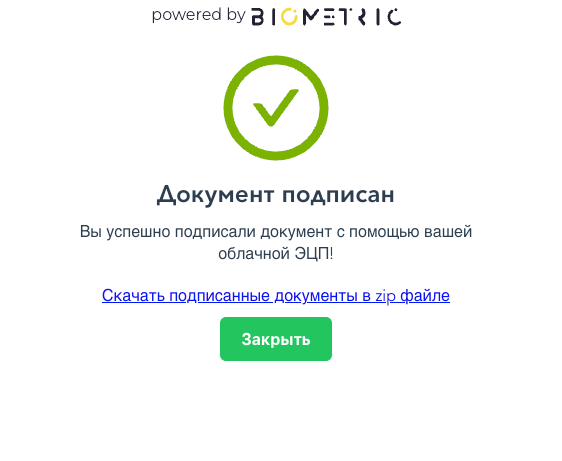
- Downloading by sending a service request
To download an archive with documents' copies through a request you need to execute a GET-request with passing session_id in the request parameters.
There is also an option to download a list of documents with QR codes at the end by adding the flag in_base64=true to the request parameters.
URL of request:
-
Dev:
https://dev.b-key.kz/api/v1/session/result/download -
Prod:
https://api.b-key.kz/api/v1/session/result/download
| Query format | Query method |
|---|---|
| JSON | GET |
API KEY is passed in the request header.
Query parameters:
| Parameter | Type | Mandatory | Description |
|---|---|---|---|
| session_id | String | Yes | DS Session Identifier |
| in_base64 | Boolean | No | Sends data in base64 format |
The following examples contain test data. In real queries, the field values will correspond to the information of a specific subject. If you are using a production environment, you should use the api.b-key.kz subdomain.
Examples of request:
import requests
import json

url = "https://dev.b-key.kz/api/v1/session/result/download/"
headers = {
    "x-api-key": "API_KEY".
}
params = {
    "session_id": "<session_id>"
}

response = requests.get(url, headers=headers, params=params)

If response.status_code == 200:
    with open("documents.zip", "wb") as file:
        file.write(response.content)
    print("Archive downloaded successfully.")
else:
    print("Error:", response.status_code, response.text)
const url = "https://dev.b-key.kz/api/v1/session/result/download/";
const headers = {
    "x-api-key": "API_KEY".
};
const params = new URLSearchParams({
    session_id: "<session_id>"
});

fetch(`${url}?${params.toString()}`, {
    method: "GET",
    headers: headers
})
    .then(response => response.blob())
    .then(blob => {
        const link = document.createElement("a");
        link.href = URL.createObjectURL(blob);
        link.download = "documents.zip";
        link.click();
    })
    .catch(error => console.error("Error:", error));
const url: string = "https://dev.b-key.kz/api/v1/session/result/download/";
const headers: Record<string, string> = {
    "x-api-key": "API_KEY".
};
const params: URLSearchParams = new URLSearchParams({
    session_id: "<session_id>"
});

fetch(`${url}?${params.toString()}`, {
    method: "GET",
    headers: headers
})
    .then(response => response.blob())
    .then(blob => {
        const link = document.createElement("a");
        link.href = URL.createObjectURL(blob);
        link.download = "documents.zip";
        link.click();
    })
    .catch(error => console.error("Error:", error));
Example:
https://dev.b-key.kz/api/v1/session/result/?session_id=session_id.
The response to the request will come with a binary-formatted file.
Examples of requests for base64 format:
import requests
import json

url = "https://dev.b-key.kz/api/v1/session/result/download/"
headers = {
    "x-api-key": "API_KEY"
}
params = {
    "session_id": "<session_id>",
    "in_base64": True,
}

response = requests.get(url, headers=headers, params=params)

if response.status_code == 200:
    print("Session result:", response.json())
else:
    print("Error:", response.status_code, response.text)
const url = "https://dev.b-key.kz/api/v1/session/result/download/";
const headers = {
    "x-api-key": "API_KEY"
};
const params = new URLSearchParams({
    session_id: "<session_id>",
    in_base64: true,
});

ffetch(`${url}?${params.toString()}`, {
    method: "GET",
    headers: headers
})
    .then(response => response.json())
    .then(result => console.log("Session result:", result))
    .catch(error => console.error("Error:", error));
const url: string = "https://dev.b-key.kz/api/v1/session/result/download/";
const headers: Record<string, string> = {
    "x-api-key": "API_KEY"
};
const params: URLSearchParams = new URLSearchParams({
    session_id: "<session_id>",
    in_base64: true,
});

fetch(`${url}?${params.toString()}`, {
    method: "GET",
    headers: headers
})
    .then(response => {
        if (!response.ok) {
            throw new Error(`HTTP error! status: ${response.status}`);
        }
        return response.json();
    })
    .then(result => console.log("Session result:", result))
    .catch(error => console.error("Error:", error));
Example:
https://dev.b-key.kz/api/v1/session/result/?session_id=session_id&in_base64=true
Example response:
Check session status#
If necessary, there is an option to check the status of session signing.
The session has 4 statuses:
STARTED- InitializedPROCESS- In ProgressFINISHED- Successfully completedCANCELED- Failed/Canceled
To get the session status, you need to execute a GET request passing session_id in the request parameters.
URL of request:
-
Dev:
https://dev.b-key.kz/api/v1/session/status/ -
Prod:
https://api.b-key.kz/api/v1/session/status/
| Query format | Query method |
|---|---|
| JSON | GET |
API KEY is passed in the request header.
Query parameters:
| Parameter | Type | Mandatory | Description |
|---|---|---|---|
| session_id | String | Yes | DS Session Identifier |
The following examples contain test data. In real queries, the field values will correspond to the information of a specific subject. If you are using a production environment, you should use the api.b-key.kz subdomain.
Examples of request:
import requests
import json

url = "https://dev.b-key.kz/api/v1/session/status/"
headers = {
    "x-api-key": "API_KEY".
}
params = {
    "session_id": "<session_id>"
}

response = requests.get(url, headers=headers, params=params)

If response.status_code == 200:
    print("Session status:", response.json()))
else:
    print("Error:", response.status_code, response.text)
const url = "https://dev.b-key.kz/api/v1/session/status/";
const headers = {
    "x-api-key": "API_KEY".
};
const params = new URLSearchParams({
    session_id: "<session_id>"
});

fetch(`${url}?${params.toString()}`, {
    method: "GET",
    headers: headers
})
    .then(response => response.json())
    .then(result => console.log("Session status:", result)))
    .catch(error => console.error("Error:", error));
const url: string = "https://dev.b-key.kz/api/v1/session/status/";
const headers: Record<string, string> = {
    "x-api-key": "API_KEY".
};
const params: URLSearchParams = new URLSearchParams({
    session_id: "<session_id>"
});

fetch(`${url}?${params.toString()}`, {
    method: "GET",
    headers: headers
})
    .then(response => {
        if (!response.ok) {
            throw new Error(`HTTP error! status: ${response.status}`);
        }
        return response.json();
    })
    .then(result => console.log("Session status:", result))
    .catch(error => console.error("Error:", error));
Example:
https://dev.b-key.kz/api/v1/session/status/?session_id=session_id.
Possible values of the failure_reason field in the response:
| Type | Details | Description |
|---|---|---|
| EXPIRED | Session has expired | Session lifetime has expired |
| LIVENESS | Liveness or F2F failed | Liveness failure |
| FACE2FACE | Liveness or F2F failed | Failure due to failure to compare |
| EDOCUMENT | Could not send request to edocument service | Failure due to digital document not passing |
| OTHER | Other | Failure for other reasons |
Example response:
Signing a Document by Multiple Clients#
The service functionality allows documents to be signed by multiple users.
To implement this process, after each signature, it is necessary to extract the CMS signature in Base64 format from the "sign" field, convert it to a PDF, and repeat steps 2–5.
When downloading an archive with document copies, each file will include information about the signers at the end, including their full names, signature dates, and a QR code leading to the document verification page.
Note: To verify the document on the corresponding page, the original file signed by the first user must be uploaded.
Actions after session termination#
When the session ends, a redirect occurs and parameters such as status and reason are returned.
In case the session ended successfully, returns:
If the session fails,status = False is returned, along with a reason parameter whose value can be the following.
| Value | Description |
|---|---|
| refresh | Session was not found, please do not refresh the page during the whole process |
| f2f | F2F pass error |
| lv | Error in passing Liveness |
| closed | You closed the window while passing the liveness test |
| lv-unavailable | Liveness service is currently unavailable |
| password | You have exceeded the allowed number of password attempts |
| otp | You have exceeded the allowed number of attempts to enter the SMS code |
| request | Error when sending a request to the E-Document |
| reissue | Certificate reissue error |
| certificate | Certificate creation initialization error |
| password-otp | You have exceeded the allowed number of attempts to enter the SMS code to create a password |
| accept-certificate | Certificate issuance error |
| sign-doc | Error in signing a document |
| video | Video download error |
Possible errors#
If an error occurs, you will receive a response with the appropriate code and description of the error.
| Response code | Error text | Description |
|---|---|---|
| 403 | Verification not passed | Verification failed |
| 404 | Organization not found | Requested organization not found |
| 404 | organization api-key not found | Organization api-key not found |
| 404 | Session not found | Session not found |
| 404 | Liveness session not found | Liveness session not found A |
| 404 | F2F session not found | Face2face session not found |
| 404 | Subject not found in MCDB | Subject not found in Mobile Citizen Database |
| 404 | Certificate not found | Certificate not found |
| 404 | Document file(s) not found | Document(s) not found |
| 404 | Document file(s) not found on server | Document file(s) not found on server |
| 409 | You don't have access to these session actions | Session actions are not allowed |
| 409 | Could not send request to edocument service | Edocument service not responding |
| 503 | Digital service signature is not available | DS service not available |
FAQ (Frequently Asked Questions)#
- Does this service have OpenAPI documentation?
- Yes. It is on the test environment at dev.b-key.kz/swagger.
- What is the format in which a document signature is stored? What does the character set that comes after the signature mean?
- The signature is stored in CMS (Cryptograghic Message Syntax) format. You can use this service to understand the contents of the CMS.
- Can I reuse a session to go through it again?
- No, you cannot. If you need to go through the session again, it is recommended to create a new session and go through it.
- What is
check_id? Why do I need this parameter? - The
check_idparameter is needed to go to the document authentication page. This is described in the documentation in the Document Archive Download step. - What statuses can a session have?
- A session has 4 statuses:
STARTED,PROCESS,FINISHED,CANCELED. For details, see the Check Session Status step. - How can I contact a Biometric manager?
- To contact a Biometric manager, please contact Telegram Biometric tech support.